It’s a frustrating situation—you plug in your phone, but instead of seeing that reassuring charging icon, nothing happens. Fortunately, this is a common issue with several potential solutions. Here’s what you can do if your phone charger is plugged in but not charging.
1. Inspect the Charging Cable
The charging cable is often the first culprit when a phone isn’t charging. Here’s what to do:
- Check for Physical Damage: Look for any visible signs of fraying, bends, or exposed wires. A damaged cable can cause inconsistent charging or no charging at all.
- Test with a Different Cable: If you have another cable, try using it with the same charger. If your phone starts charging, your original cable may be faulty.
2. Check the Power Adapter
The power adapter, the part that plugs into the wall, may also be the issue.
- Use a Different Adapter: If possible, switch out the adapter and see if your phone begins to charge. Adapters can fail over time due to wear and tear or power surges.
- Check the Output Rating: Ensure the adapter’s output matches the charging requirements of your device. An adapter with too low an output will charge your device slowly or not at all.
3. Inspect the Charging Port
Dust, lint, and debris can accumulate in your phone’s charging port, preventing a good connection between the cable and the phone.
- Clean the Charging Port: Use a small tool, like a toothpick or a soft brush, to gently clean out any debris. Be careful not to damage the internal components.
- Check for Physical Damage: Look closely to see if the charging port is damaged or loose. If the port is physically damaged, you may need to take your phone to a repair shop.
4. Try a Different Power Source
Sometimes, the outlet or power source you’re using may be the problem.
- Switch Outlets or Power Sources: Try plugging your charger into a different wall outlet, USB port, or power strip. If you’re using a USB port on your laptop, try another port or a direct wall charger instead.
- Reset the Circuit Breaker: If you're using a power strip or multi-outlet adapter, ensure that it hasn’t tripped or malfunctioned.
5. Check for Software Issues
Occasionally, a software issue could prevent your phone from charging properly.
- Restart Your Phone: A simple restart can fix glitches or bugs that might be affecting the charging process.
- Check for Software Updates: Sometimes, a system update can fix charging problems. Go to your settings and check if any updates are available.
6. Examine the Battery
If your phone is old or the battery has seen heavy use, it may no longer hold a charge properly.
- Battery Health: If your phone has a built-in feature to check battery health (common on newer devices like iPhones), review the condition of your battery. A degraded battery may need replacement.
- Visit a Technician: If none of the above solutions work, you may need to visit a technician to diagnose whether the battery itself needs replacing.
Conclusion
If your phone isn’t charging, there are a number of steps you can take to troubleshoot the issue, from checking the cable and adapter to cleaning the charging port or investigating software problems. If the problem persists after trying these solutions, it may be time to seek professional help or consider replacing the battery or charging hardware.
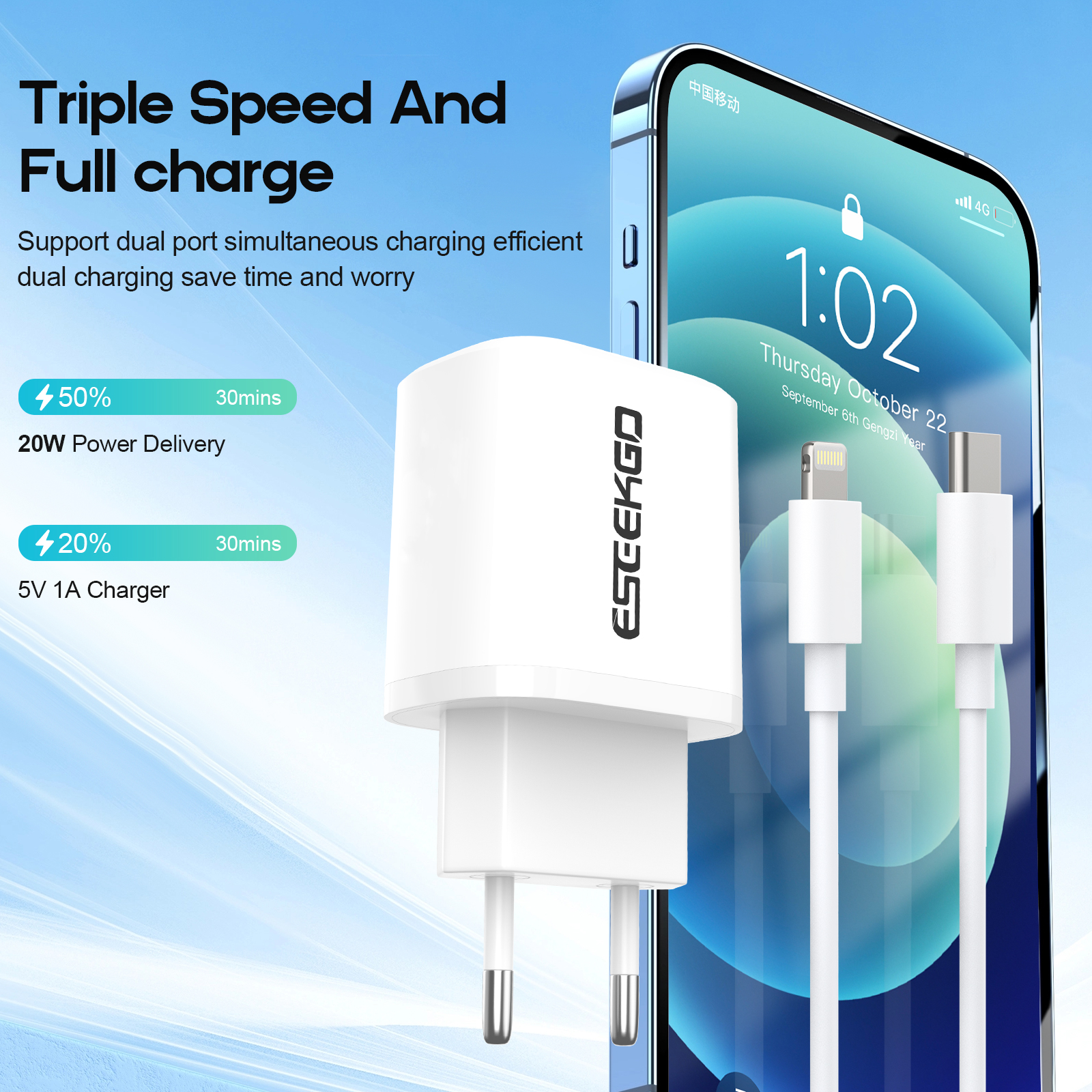
ESEEKGO ES-38EUC SET PD20W+QC3.0 Fast Wall Charger With 3.3FT USB C To USB-C Cable (2 Ports/ EU)
Efficiency: Support USB and Type-C output at the same time, no queuing and saving time.
High quality output: PD 20W + QC3.0 18W high power output, triple speed and full charge.
Portable: simple and elegant design, easy to carry without taking up space, portable and perfect for travel.
Compatibility: 100-240V wide voltage compatibility, can be used in different areas.
Safety: Mutiple pretection safety rest assured.
The package includes a data cable for fast and convenient charging.

