Experiencing issues with your charger disconnecting frequently can be frustrating and inconvenient. Whether you're trying to charge your smartphone, tablet, or laptop, a charger that keeps disconnecting not only impairs your device’s functionality but also disrupts your daily routine. If you’re dealing with this problem, you’re not alone. This guide will help you understand the possible causes of charger disconnections and provide actionable steps to resolve the issue.
1.Inspect for Damage:
Examine the charging cable for any visible signs of damage, such as fraying, bending, or cuts. A damaged cable can lead to intermittent connections and charging failures.
2.Ensure Proper Connection:
Make sure the cable is securely connected to both the charger and your device. Loose connections can cause the charger to disconnect frequently.
Why It Matters:
A damaged or loosely connected cable is a common cause of charging issues. Replacing a damaged cable or ensuring a tight connection can resolve many connectivity problems.
1.Clean the Port:
Dirt, dust, and lint can accumulate in the charging port, obstructing the connection between the charger and your device. Use a soft brush or compressed air to gently clean the port.
2.Check for Obstructions:
Ensure there are no foreign objects or debris blocking the charging port.
Why It Matters:
A dirty or obstructed port can prevent a proper connection and lead to frequent disconnections. Keeping the port clean ensures a stable and reliable connection.
1.Try Alternate Chargers:
Test your device with a different charger and cable to determine if the issue is with your original charger or cable.
2.Use Known Working Accessories:
If possible, use a charger and cable that you know work well with other devices to rule out issues with your accessories.
Why It Matters:
Testing with different chargers and cables helps identify whether the problem lies with your original accessories or your device. This can guide you in finding the right solution.
1.Update Your Device:
Ensure your device’s software is up to date. Software glitches or outdated operating systems can sometimes cause charging problems.
Restart Your Device:
Restarting your device can clear temporary software issues that might be affecting the charging process.
Why It Matters:
Software issues or bugs can sometimes interfere with charging. Keeping your device updated and restarting it can resolve these software-related problems.
1.Try Different Outlets:
Plug your charger into a different power outlet to see if the problem persists. Faulty or inconsistent power sources can cause charging issues.
2.Check Power Strips:
If you’re using a power strip or extension cord, ensure it’s functioning correctly and not causing interruptions.
Why It Matters:
A faulty power source or power strip can lead to inconsistent charging. Testing different outlets or power sources helps determine if the issue lies with your power setup.
1.Ensure Proper Ventilation:
Ensure that your charger and device have adequate ventilation. Overheating can cause the charger to disconnect as a safety measure.
2.Avoid Direct Sunlight:
Keep your device and charger out of direct sunlight and heat sources to prevent overheating.
Why It Matters:
Overheating can trigger safety features that disconnect the charger to prevent damage. Proper ventilation and avoiding excessive heat can help maintain a stable connection.
1.Check for Device Issues:
If your device has internal hardware problems, such as a damaged charging port or battery, it may affect charging stability. Consult a professional if you suspect hardware issues.
2.Seek Professional Help:
If you’ve tried all the above steps and the problem persists, consider taking your device to a technician for a thorough inspection and repair.
Why It Matters:
Hardware issues can be complex and may require professional diagnosis and repair. Addressing these issues with expert help ensures that you receive appropriate solutions.
Conclusion
A charger that keeps disconnecting can disrupt your charging routine and affect the usability of your device. By following the steps outlined in this guide, you can identify and address the common causes of charging disconnections. Start by checking the cable, charging port, and power source, and then move on to testing different accessories and investigating potential software or hardware issues.
Taking these steps will help you resolve charging issues and restore reliable performance to your device. If the problem persists despite your efforts, seeking professional assistance may be necessary to ensure your device remains in optimal working condition.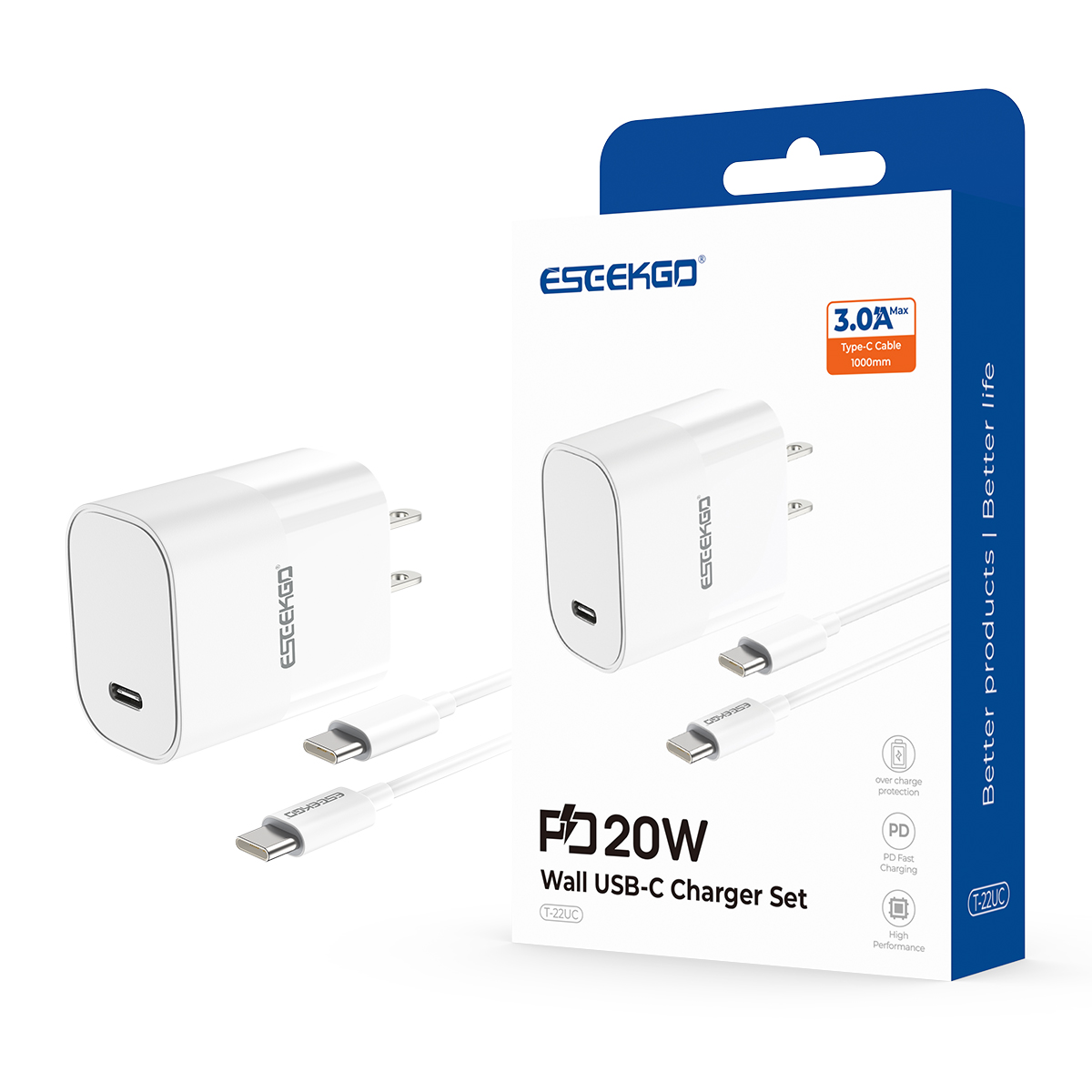
ESEEKGO T-22UC Fireproof PC Travel Adapter With 3.3FT Type-C To Type-C Fast Charging Cable(20W / US)
Fast charging: 20W ultra high power fast charging, improving charging efficiency.
Ports: Type-C interface, double-sided pluggable, convenient to use.
Compatibility: 100-240V wide voltage compatibility, can be used in different areas.
Safety material: Using PC fireproof materials, flame retardant and high-temperature resistant, protecting user safety.

