Experiencing issues with your iPhone charger can be frustrating, especially when you need your device charged and ready. Here’s a comprehensive troubleshooting guide to help you identify and resolve common problems with your iPhone charger.
- Damage: Examine both the cable and adapter for visible signs of wear, fraying, or damage. Replace any damaged components.
- Connection: Ensure that the cable is securely connected to both the adapter and your iPhone.
2.Test Different Outlets:- Power Source: Try plugging your charger into a different wall outlet or power strip to rule out issues with the outlet.
3.Restart Your iPhone:- Restart: Sometimes a simple restart can resolve charging issues. Press and hold the power button until the slider appears, then slide to power off and restart.
- Debris: Gently clean the charging port on your iPhone using a dry, soft-bristled brush or compressed air to remove any dust or lint.
2.Check for Damage:- Port Condition: Inspect the charging port for any physical damage or bent pins. If damaged, you may need professional repair.
- Compatibility: Ensure that you’re using an Apple-certified Lightning cable and adapter. Non-certified accessories may not work properly.
2.Try a Different Charger:- Testing: Use a different Apple charger and cable to determine if the issue is with the original charger or the iPhone itself.
- Update: Go to Settings > General > Software Update and install any available updates. Outdated software can sometimes cause charging issues.
Reset and Restore Your iPhone
- Reset: If other solutions fail, try resetting your iPhone’s settings by going to Settings > General > Reset > Reset All Settings. This will not erase your data but will reset system settings.
2.Restore as New:- Restore: As a last resort, backup your iPhone and restore it to factory settings through iTunes or Finder. This will erase all data, so ensure you have a backup before proceeding.
- Temperature: Avoid charging your iPhone in extreme temperatures, as excessive heat or cold can affect charging performance.
2.Case Interference:- Case: Remove any bulky or thick cases that might be interfering with the connection between the charger and your iPhone.
- Support: If the problem persists after trying these steps, contact Apple Support or visit an Apple Store for further assistance and potential repair.
2.Visit a Service Center:- Repair: For hardware-related issues, visiting a certified repair center may be necessary to diagnose and fix the problem.
Conclusion
Troubleshooting a non-working iPhone charger involves checking the basics, inspecting the charging port, verifying accessories, and exploring software and hardware solutions. By following this guide, you can identify and resolve common charging issues and get your iPhone back to full power. If all else fails, professional support is available to ensure your device is repaired or replaced as needed.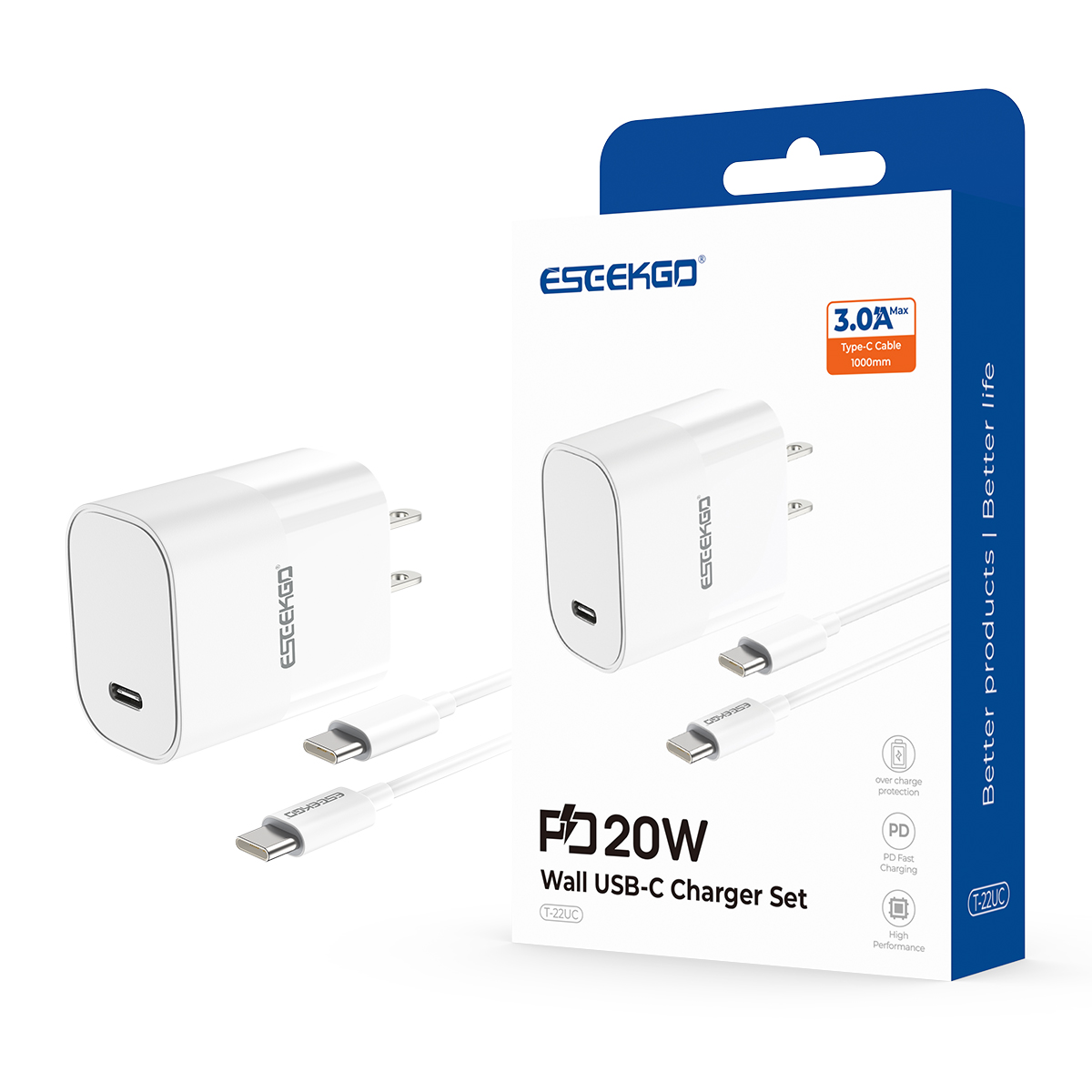
ESEEKGO T-22UC Fireproof PC Travel Adapter With 3.3FT Type-C To Type-C Fast Charging Cable (20W / US)
Fast charging: 20W ultra high power fast charging, improving charging efficiency.
Ports: Type-C interface, double-sided pluggable, convenient to use.
Compatibility: 100-240V wide voltage compatibility, can be used in different areas.
Safety material: Using PC fireproof materials, flame retardant and high-temperature resistant, protecting user safety.

